Neverness to Everness PC requirements: can your computer run Hethereau smoothly?
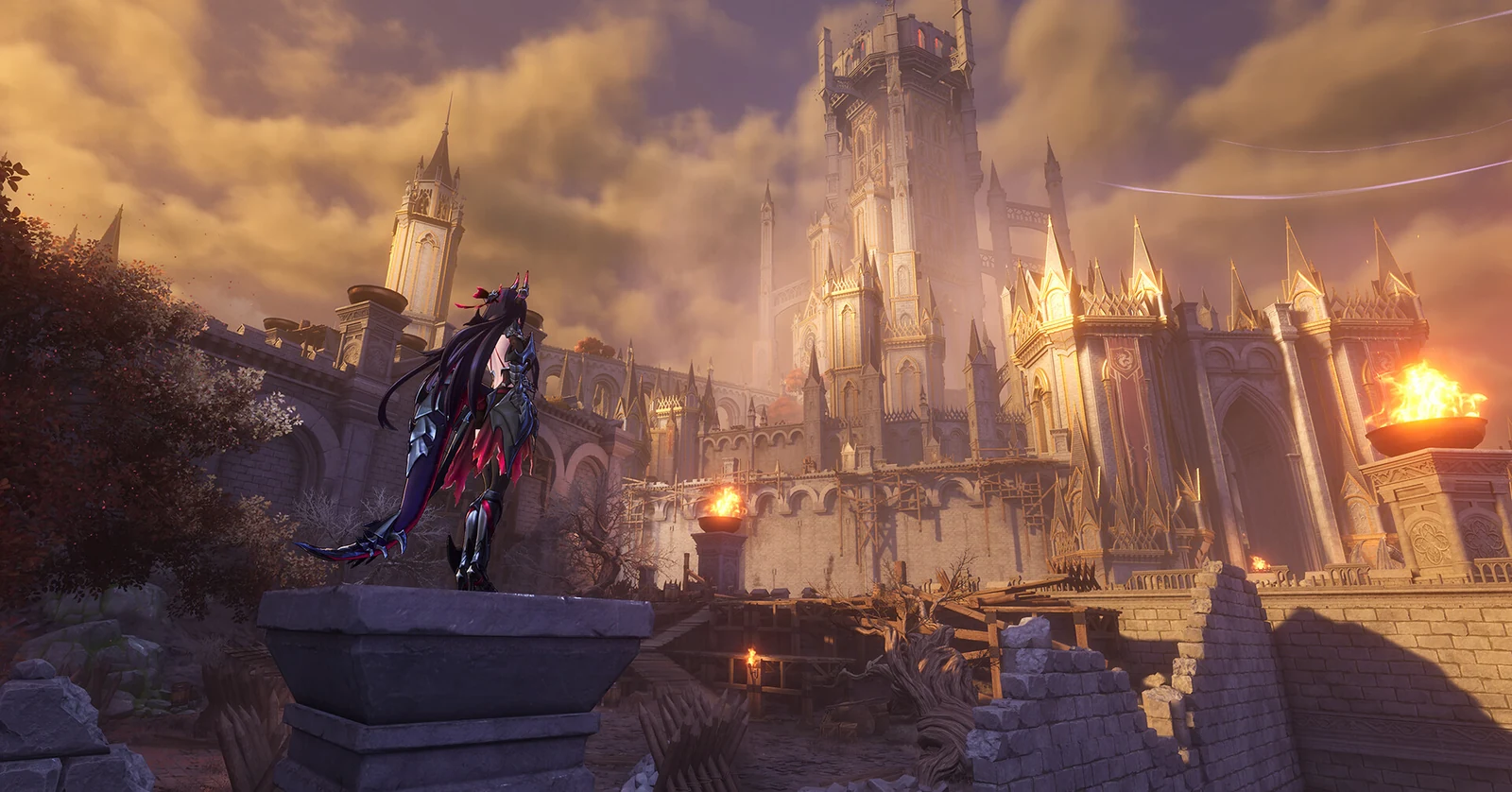
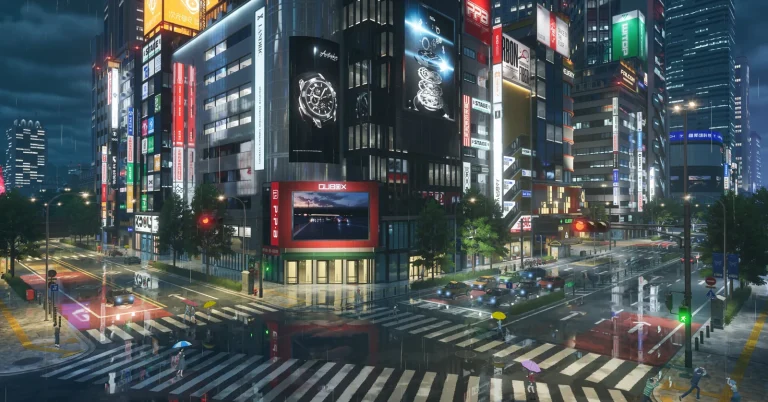
Neverness to Everness PC requirements determine whether your system can handle Hethereau without turning every busy street into a slideshow. The game is an urban open-world RPG with large city areas, vehicle movement, and a modern visual pipeline, so the hardware bar is higher than many older anime RPGs.
This page focuses on the official Windows requirements, the real storage situation, and the practical setup choices that matter before launch. For the wider setup, progression, and early-game route, the central hub is Neverness to Everness PC Guide.
After checking storage and hardware, readers planning a Windows setup can review Neverness to Everness for Windows PC as part of their preparation.
1. Official PC requirements
The official launch information lists Neverness to Everness for Windows PC with a clear minimum and recommended target. The most important detail is that the minimum requirement is not a low-end office PC. The baseline starts with a 10th gen Intel Core i7 and a GTX 1660 or RX 5600 class graphics card.
| Component | Minimum requirement | Recommended requirement |
|---|---|---|
| Operating system | Windows 10 64-bit or later | Windows 10 64-bit or later |
| CPU | Intel Core i7-10700 | Intel Core i7-12700 or better |
| GPU | NVIDIA GTX 1660 or AMD RX 5600 | NVIDIA RTX 3060 or AMD RX 6700 or better |
| RAM | 16 GB | 32 GB or more |
| Storage | At least 60 GB free | 60 GB plus extra free space |
| Temporary extraction space | Additional 60 GB during installation | Additional 60 GB during installation |
| Drive advice | SSD strongly recommended | SSD strongly recommended |
The safest reading is simple. A PC with 16 GB RAM, a GTX 1660, and enough SSD space can target entry-level play. A PC with 32 GB RAM and an RTX 3060 or RX 6700 class card is the better match for smoother city exploration.
2. Storage is the first real bottleneck
The official requirement says at least 60 GB of free space, plus another 60 GB temporarily during file extraction. That means players should not prepare only 60 GB and assume everything is fine.
A practical storage plan looks like this:
| Storage target | What it means |
|---|---|
| 60 GB | Base free space requirement |
| 120 GB | Safer install space during extraction |
| 130-150 GB | Comfortable buffer for patches and launcher behavior |
| SSD | Strongly recommended for smoother loading and streaming |
A lot of PC installation problems start here. Large games often unpack files before the final install size is reached. If the drive is almost full, the launcher may fail during verification or extraction even if the final game size looks smaller than the temporary requirement.
Storage pressure chart:
60 GB | base requirement 120 GB | base + temporary extraction 150 GB | practical comfort zone
For a city-based open world, an SSD is not just about shorter loading screens. It can also help reduce texture pop-in and hitching when moving quickly through dense districts.
If the storage plan looks safe, the official PC version of Neverness to Everness is the next reference point before starting the install.
3. CPU and GPU expectations
The minimum CPU listed by the official source is the Intel Core i7-10700. That is an 8-core desktop processor from Intel’s 10th generation. This tells us the game expects a fairly capable processor, especially when the city is busy, traffic is active, and combat effects appear on screen.
The recommended CPU is the Intel Core i7-12700 or better. That is a stronger modern chip and a better fit for players who want stable frame pacing rather than just basic launch compatibility.
For graphics, the GTX 1660 and RX 5600 are the entry point. These cards are still usable for many games, but they should be treated as minimum-class hardware here. The recommended GPUs, RTX 3060 and RX 6700, are a better target for players who care about higher settings and cleaner image quality.
| Hardware level | Expected experience |
|---|---|
| Below minimum | High risk of poor performance or launch issues |
| Minimum | Playable target with careful settings |
| Recommended | Better match for smoother PC play |
| Above recommended | More room for higher resolution and visual settings |
The smart move is to start with balanced settings, then raise visual options one by one. Max settings on first boot is rarely the best test.

4. RAM and background apps
Neverness to Everness lists 16 GB RAM as the minimum and 32 GB as recommended. That difference matters.
With 16 GB RAM, the game may run, but Windows, browser tabs, recording tools, Discord, RGB software, launchers, and overlays all take their share. If too many background apps stay open, the system can hit memory pressure. That can create stutters that feel like GPU problems even when the graphics card is not the only issue.
A clean first session should look like this:
| Setup habit | Why it helps |
|---|---|
| Close heavy browser tabs | Frees memory and CPU cycles |
| Pause large downloads | Reduces network and disk pressure |
| Disable unneeded overlays | Avoids conflicts and frame pacing issues |
| Restart before first launch | Clears stuck background processes |
| Keep Windows updated | Reduces runtime and driver problems |
For players with 32 GB RAM, the experience should be more forgiving. It gives Windows and the game more breathing room during long sessions.
5. Recommended first settings
The best first settings are not always the prettiest ones. They are the ones that help you understand how your PC handles the game.
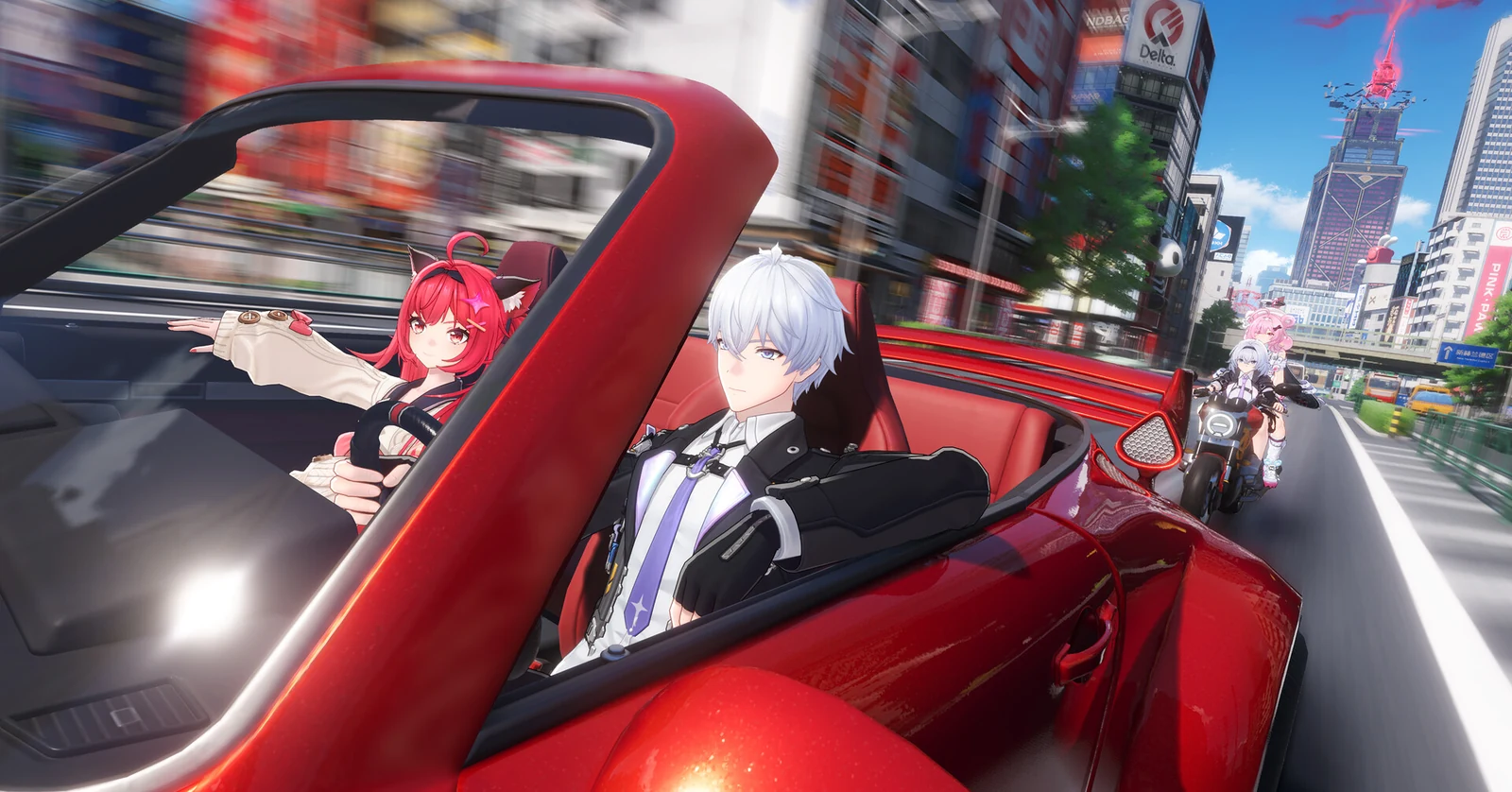
Start with medium or balanced settings, then test movement through the city. Driving is especially useful because it stresses asset streaming, storage speed, and frame pacing.
| Setting area | Safer first choice |
|---|---|
| Display mode | Fullscreen or borderless, test both |
| Resolution | Native if stable, lower if needed |
| Shadows | Medium |
| Reflections | Low or medium |
| Motion blur | Off |
| Frame cap | 60 FPS first, then adjust |
| Upscaling | Balanced or quality if available |
A stable 60 FPS usually feels better than unstable high frame rates. If the game jumps between 45 and 90 FPS, use a frame cap and lower the heaviest visual settings first.
6. Common setup problems to avoid
Several official troubleshooting notes point to simple causes: storage, install path, network issues, and launcher repair.
The install path is important. The official FAQ notes that a PC install path using non-English characters can cause an error. A short path with standard letters is safer.
| Problem | Practical fix |
|---|---|
| Not enough disk space | Free up more than 120 GB before installing |
| Install path error | Use a simple English-character folder path |
| Download stops or freezes | Check VPN, proxy, network, and restart launcher |
| Verification fails | Retry, restart launcher, or repair files |
| Slow startup | Use an SSD and let first launch finish cleanly |
A simple path such as `D:\Games\NTE` is easier for launchers than a long folder name with accents, symbols, or mixed language characters.
7. PC, console, and cross-progression notes
The official launch information lists Windows PC, iOS, Android, Apple Mac, Google Play PC, PlayStation 5, and PlayStation 5 Pro. It also states that account progress carries across platforms when using the same account, but server data is separate.
That last part matters for players in the United States, Canada, and Europe. The game has independent servers including America and Europe. Progress on one server does not transfer to another server.
| Player region | Practical server choice |
|---|---|
| USA | America server |
| Canada | America server |
| Western Europe | Europe server |
| Eastern Europe | Europe server, unless latency says otherwise |
Choosing the closest server is usually the safest route for stable response. It is also a decision to make carefully, because progress is not shared between servers.
8. Quick compatibility checklist
Use this before starting the install process.
| Question | Safe answer |
|---|---|
| Do you have Windows 10 64-bit or later | Yes |
| Do you have at least an i7-10700 class CPU | Yes |
| Do you have at least a GTX 1660 or RX 5600 class GPU | Yes |
| Do you have 16 GB RAM or more | Yes |
| Do you have 120 GB free during installation | Yes |
| Are you installing on SSD | Preferably yes |
| Is your install path simple | Yes |
| Have you closed heavy background apps | Yes |
If one answer is no, fix that before blaming the launcher. It saves time and avoids broken partial installs.
Neverness to Everness is not the kind of PC game where the only question is “can it open.” The better question is whether your system can handle Hethereau with stable storage, enough RAM, and a graphics card that fits the game’s urban open-world demands.
The official minimum is already fairly serious: i7-10700, GTX 1660 or RX 5600, 16 GB RAM, and 60 GB plus temporary extraction space. The recommended target, with an i7-12700, RTX 3060 or RX 6700, and 32 GB RAM, is the safer place for players who want a smoother PC experience.
Once the hardware check is done, the next useful step is planning the first hours carefully. The natural follow-up is Neverness to Everness Beginner Guide, especially for players who want to avoid early mistakes with servers, settings, resources, and progression.
Once the checklist is complete, learn more about the PC version as a final reference before installing or changing your setup.
9. Frequently asked questions
9.1. Can Neverness to Everness run on 16 GB RAM?
Yes, 16 GB RAM is the official minimum for PC. For smoother play, the official recommended target is 32 GB RAM, especially if background apps are open.
9.2. How much storage should I prepare for Neverness to Everness on PC?
The official PC requirement is at least 60 GB free, plus another 60 GB temporarily during extraction. A safer practical target is 130-150 GB free on an SSD.
9.3. Is an SSD required for Neverness to Everness?
The official FAQ strongly recommends an SSD. It is the safer choice for loading, city traversal, and reducing stutter while moving quickly through Hethereau.
9.4. What settings should I try first on a minimum PC?
Start with balanced or medium settings, lower reflections, motion blur off, and a 60 FPS cap. Raise settings only after walking, driving, and combat feel stable.
Sources used for fact checking: official NTE launch FAQ and official NTE pre-download page.